MFA authentication methods for GUI access
See:
After enabling Multi-factor authentication, in order to continue accessing the GUI interface, you must choose at least one of the authentication methods available on the platform:
- through an MFA authentication application, installed on a personal device (MFA device - ex: mobile phone)
- through email
Depending on the MFA authentication method chosen, follow the steps below:
1. Through an MFA authentication app
Install a Multi-factor authentication app (e.g. apps: Google Authenticator, Microsoft Authenticator, Apple Passwords, etc.) on a personal device (e.g. apps: Google Authenticator, Microsoft Authenticator, Apple Passwords, etc.)
Go to the My Account -> Security section, where you will need to follow the steps below:
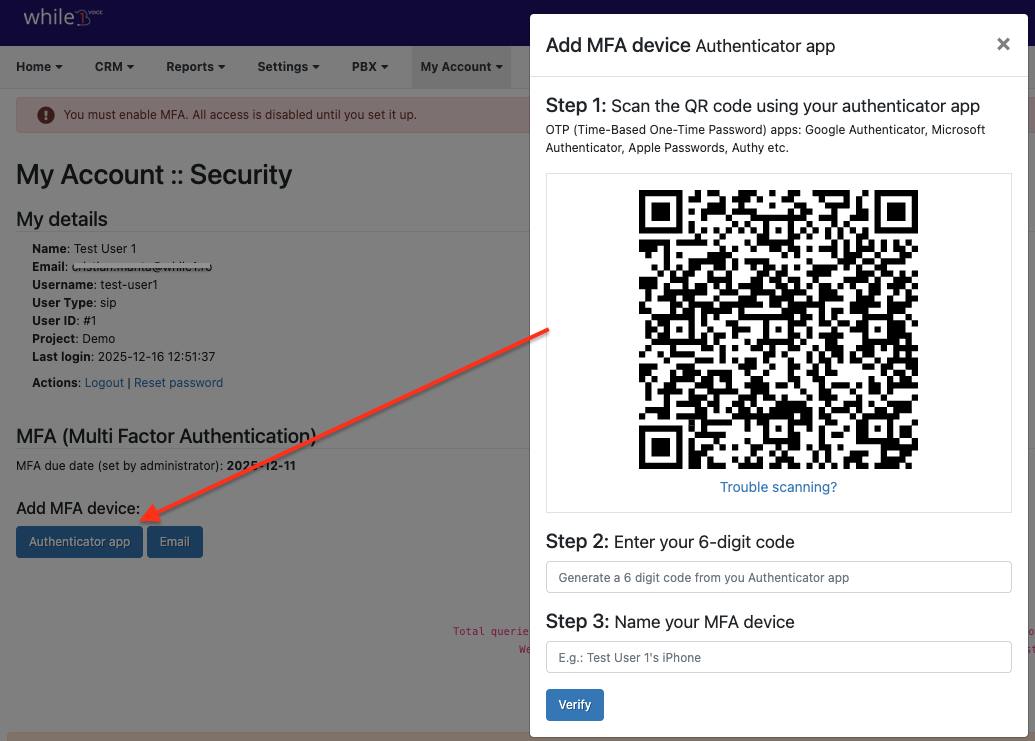
- Click on Authenticator app
- Follow the instructions to connect the authentication app (e.g., Google Authenticator, Microsoft Authenticator, Apple Passwords, etc.):
Step 1 - Scan the QR code using your favorite app
Step 2 - Add the 6-digit code that appears in the app
Step 3 - Add the name MFA device
Step 4 - Click the Verify button
2. By email
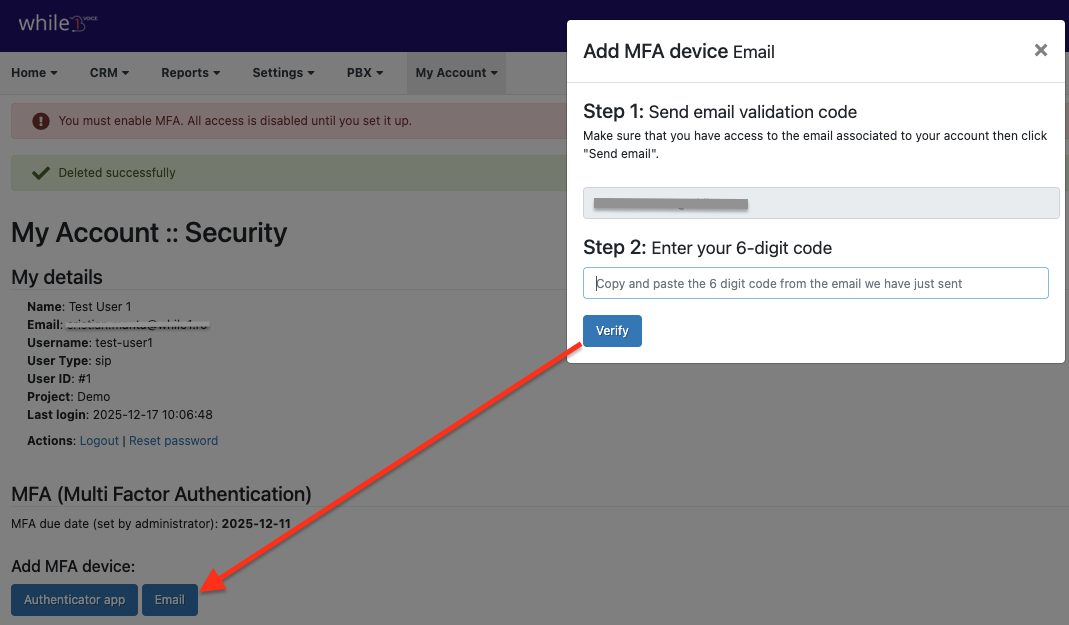
- Click on Email and follow the instructions:
Step 1 - Make sure you have access to the email address (the email address you will receive the code on is the one added at the user level)
Step 2 - Add the 6-digit code you received by email
Step 3 - Click the Verify button