Reset GUI Password by Admin
See also:
To generate a new GUI password, follow these steps:
1. Go to Settings :: Users :: Edit User
2. Select the user for whom the GUI Password needs to be reset.
3. Reset the password either by generating it automatically or by entering it manually:
- To manually set the desired password, enter it in the GUI Password field, then click Update user
- To automatically generate a password, leave the GUI Password field blank and click the generate button.
After saving the changes, the automatically generated GUI password will be sent to the user's email address.

Attention!
To reset the GUI password, the user must have an email address configured. If USERS_UNIQUE_EMAIL_ADDRESS is enabled, the email address must be unique for each user (e.g., contact@gmail.com)..
If the same email address has already been used for another user, you will receive the following error: „Email Address is already in use by user ID#000”
The USERS_UNIQUE_EMAIL_ADDRESS setting is disabled by default and can be enabled upon request.
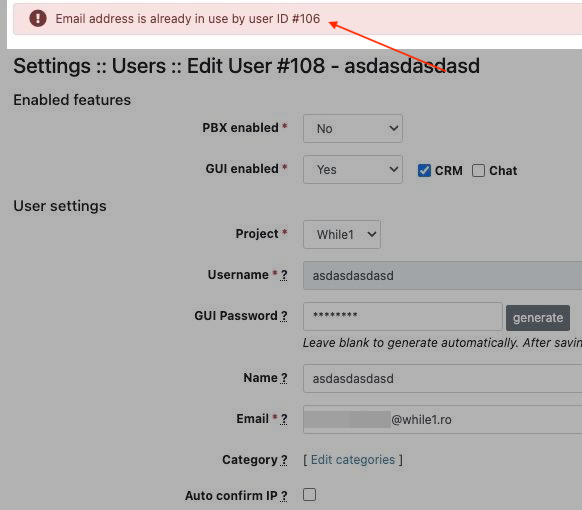
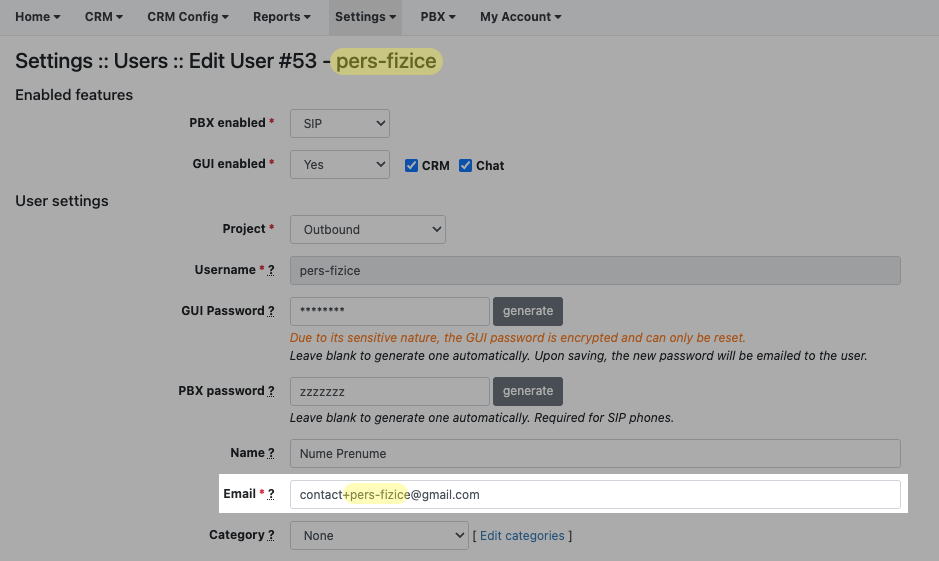
If USERS_UNIQUE_EMAIL_ADDRESS is enabled and you do not have unique email addresses for each user, the solution is to use email tagging: ex.: contact+username@gmail.com
Disponibil in alte limbi: RO