Call queue
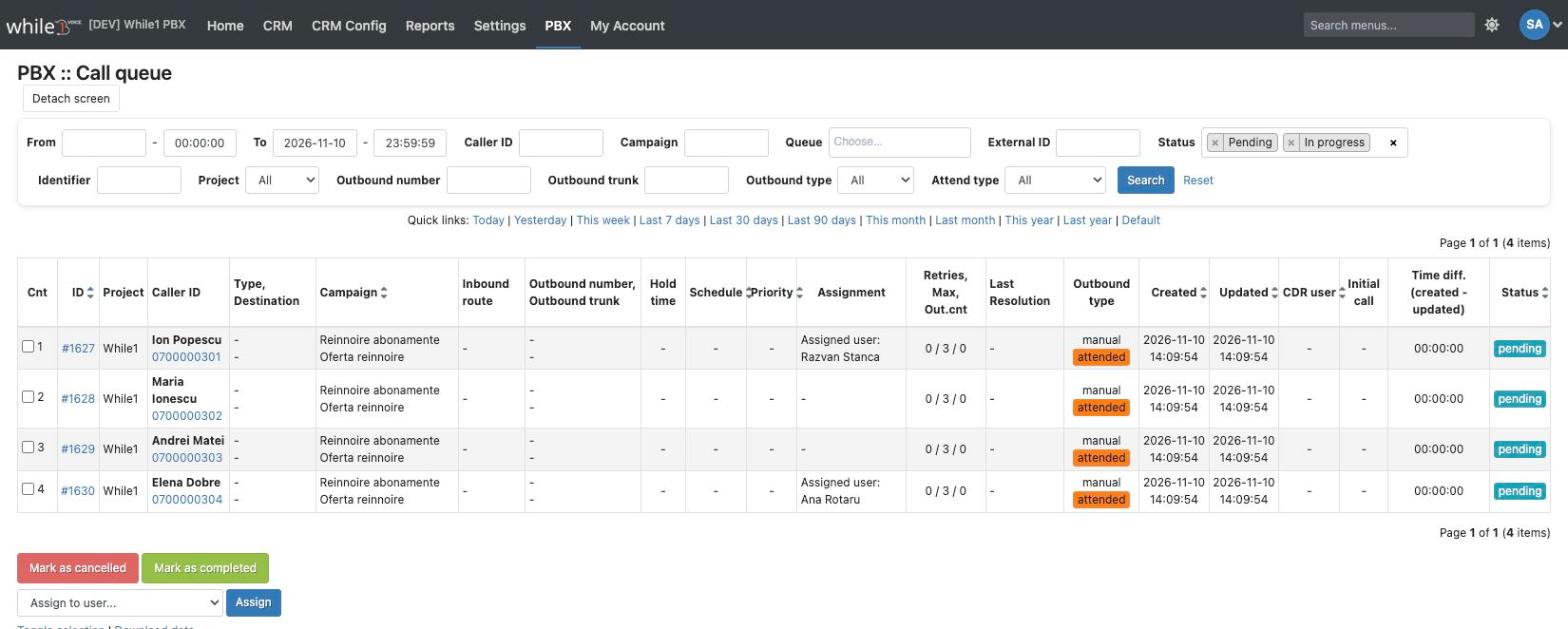
In this section you can view scheduled calls (missed calls to recover, automatic campaigns, etc.):

Also, for each call in the PBX / Call queue list, a call link can be generated by clicking on the (#) signin the second column:

Calls import
At the bottom of the PBX / Call queue page you can import a calls list without creating a campaign: choose the project, fill in the campaign name, optionally the call type and destination, and upload the file (XLSX or CSV, following the Download import sample model).

Manual calls (operators)
When importing you can check Manual calls (operators): the calls are no longer dialed automatically, they are shown in Home / Call list (type Scheduled call), where the operators call them with the Assign & call button. A call is taken by a single operator: on click it is assigned to the user who calls, and if another operator took it in the meantime a message is shown.
- Assign to user: all the calls from the file are assigned to a user (active, with access to the project); only that user sees them in Call list and calls them (the Call button).
- The assigned_user file column (username) has priority over Assign to user and makes the call manual.
- The users with the Assign the manual calls to users, call any manual call from the Call list permission (PBX / Call queue, by default admin and supervisor) see all the manual calls, can call any of them and can reassign them from PBX / Call queue: select the pending calls, choose the user in Assign to user (or Unassign) and click Assign.
- After the call, the row stays inprogress until the CDR is saved: answered call - completed, not answered - pending again; after the maximum number of retries - cancelled.
For settings such as active / retry hours or the interval between calls, use a campaign from PBX / Campaigns (see How to create an automated outbound campaign).
Available in other languages: RO