Caller ID Pop-up
See also:
If you use your own CRM, it can be integrated with the While1 Voice application to allow the automatic display of the customer record to the agent/user, when the call is answered.
For each call in a queue, for direct calls to a user (e.g. Inbound route of User type) and for outbound calls, a pop-up with the customer record will open on answer, in a new browser window (Chrome).
The pop-up opens only if the Pop-up URL on incoming calls answer parameter is enabled (Settings :: Parameters, AGI group).
Steps to follow to display the pop-up:
Step 1 - Finish integrating your CRM with While1 Voice
Available integration methods:
- Caller Data Retrieval from DB
- Caller Data Retrieval via Webservice
- another method specific to your business

The integration of the PBX with the external CRM allows the identification of the customer in your database by phone number and the sending of the pop-up with the customer record to the agent.
The integration method best suitable for you should be discussed with the While1 Voice representative, and depending on this, you can use the resources provided in the links above.
Step 2 - Fill in the Backend link field with the URL
- Fill in the Backend link field, according to the indications in the Projects section, to allow the pop-up to be opened when an incoming call is answered, identifying the customer by the phone number they called from.
The URL will be provided for each project separately, for which there is a completed integration, if there are more projects / stores added.
The URL entered must be the one used for the usual search for a customer's phone number in your CRM, replacing the phone number in the syntax with [PHONE] (or %s):
E.g. the url syntax: https://crm.com/contacts/search?phone=[PHONE] ; [PHONE] will be replaced with the caller's number, in order to display the pop-up with the customer record to the agent that answered the call.
The following variables can also be used in the URL:- [UNIQUEID], [CONTACT_ID], [INBOUND_ROUTE_ID], [CALLED_NO], [CALLER_NO], [PROJECT_REMOTE_ID]
- $AGENT_USERNAME, $AGENT_REMOTE_ID, $PROJECT_REMOTE_ID, $INBOUND_ROUTE_IDENTIFIER
In the Params field next to Backend link you can set, separated by commas:
- no_params - the ctk_* parameters are not added
- skip_caller_info, skip_crm, skip_crm_new, skip_contacts, skip_all - ignore the respective link source (see the order below)
Fill in the external CRM URL only if you have agreed with the While1 Voice representative on this type of communication between your own CRM and the While1 Voice application.

Please note!
- The Backend link set in the project is used only if there is no other link, in this order:
- backend_link received via API / external DB
- the contact record in the While1 Voice CRM (if the CRM is active and the contact exists)
- a new contact form in the While1 Voice CRM (if the CRM is active and the project has no external integration)
- the contact in Contacts (light)
- the Backend link in the project
Step 3 - Choosing the right extension
Step 4 - Test the URL to Backend
- Go back to the project page where you entered the url: Settings / Projects / Edit Project
- Fill in the test form:

Please note!
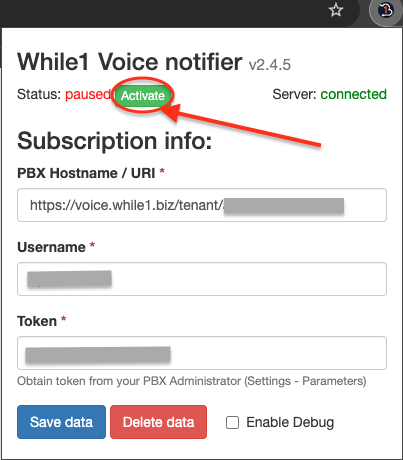
- After saving the data, make sure the Status is Active; the default status is paused.
Click on Activate to change the current status.

Click on Activate to change the current status.
- In order for the extension to work, port 8080 must not be blocked by the client's firewall, and the IP from which you connect must be allowed or approved from the interface (whitelisted).
Depending on the IP type, you need to proceed in one of the following ways:- if the IP is static, it needs to be provided in advance to the While1 Voice representative in order to add it in the firewall and allow access from it
- if the IP is dynamic, follow the IP confirmation and approval steps in section Confirm IP address
- Optionally, a pop-up can also be opened when a call answered in a queue ends (for call coding), by enabling the Pop-up URL on call end parameter (Settings :: Parameters, AGI group). The call coding page in While1 Voice opens (or the Backend link, with the code_call parameter, if it is a While1 Voice page).
Available in other languages: RO